Zero Startpage User Manual
Transform your New Tab into an aesthetic, high-productivity workspace tailored to your unique workflow with this complete step-by-step documentation.
9 Screenshots Checklist
All 9 screenshot slots are integrated. Click any image to view full-resolution preview.
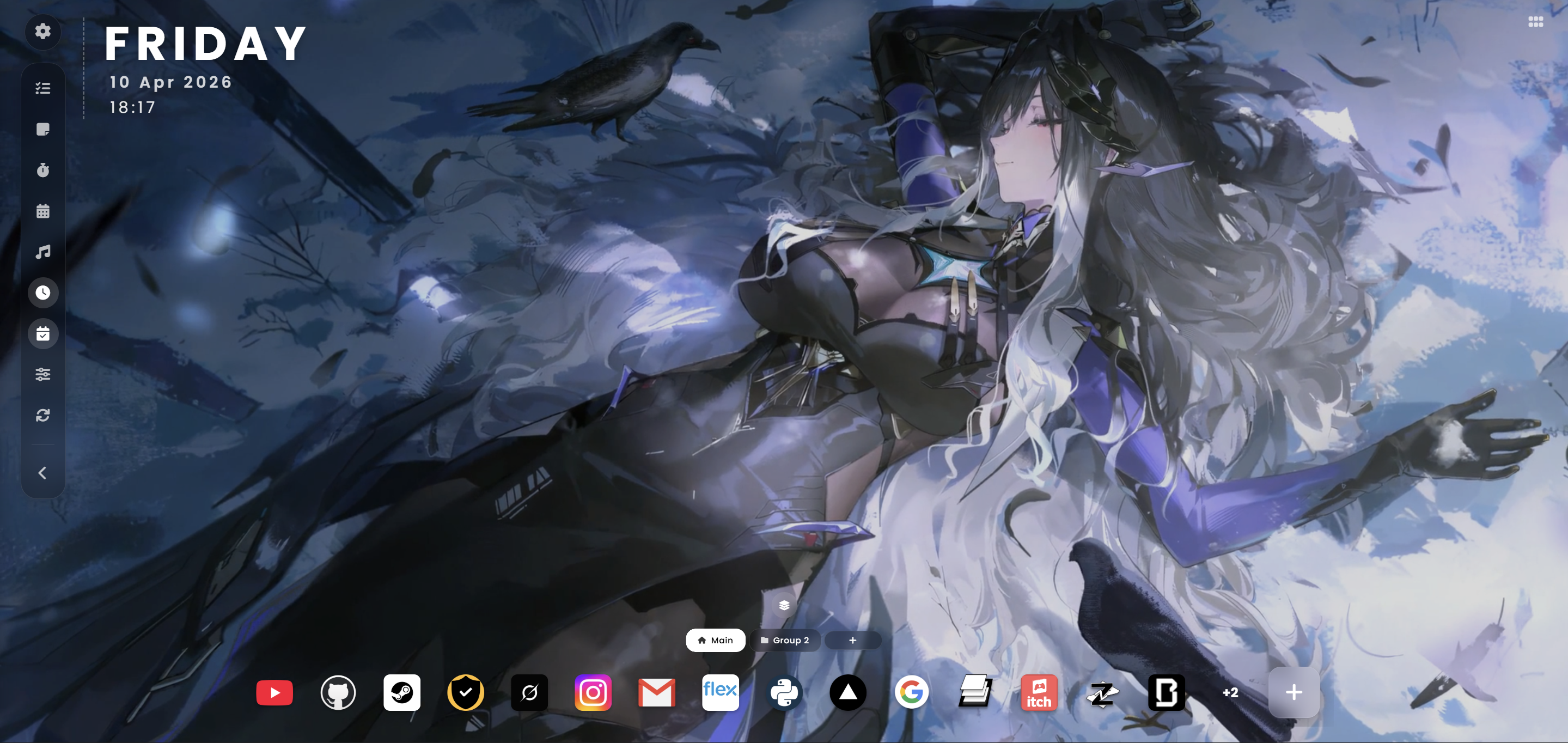
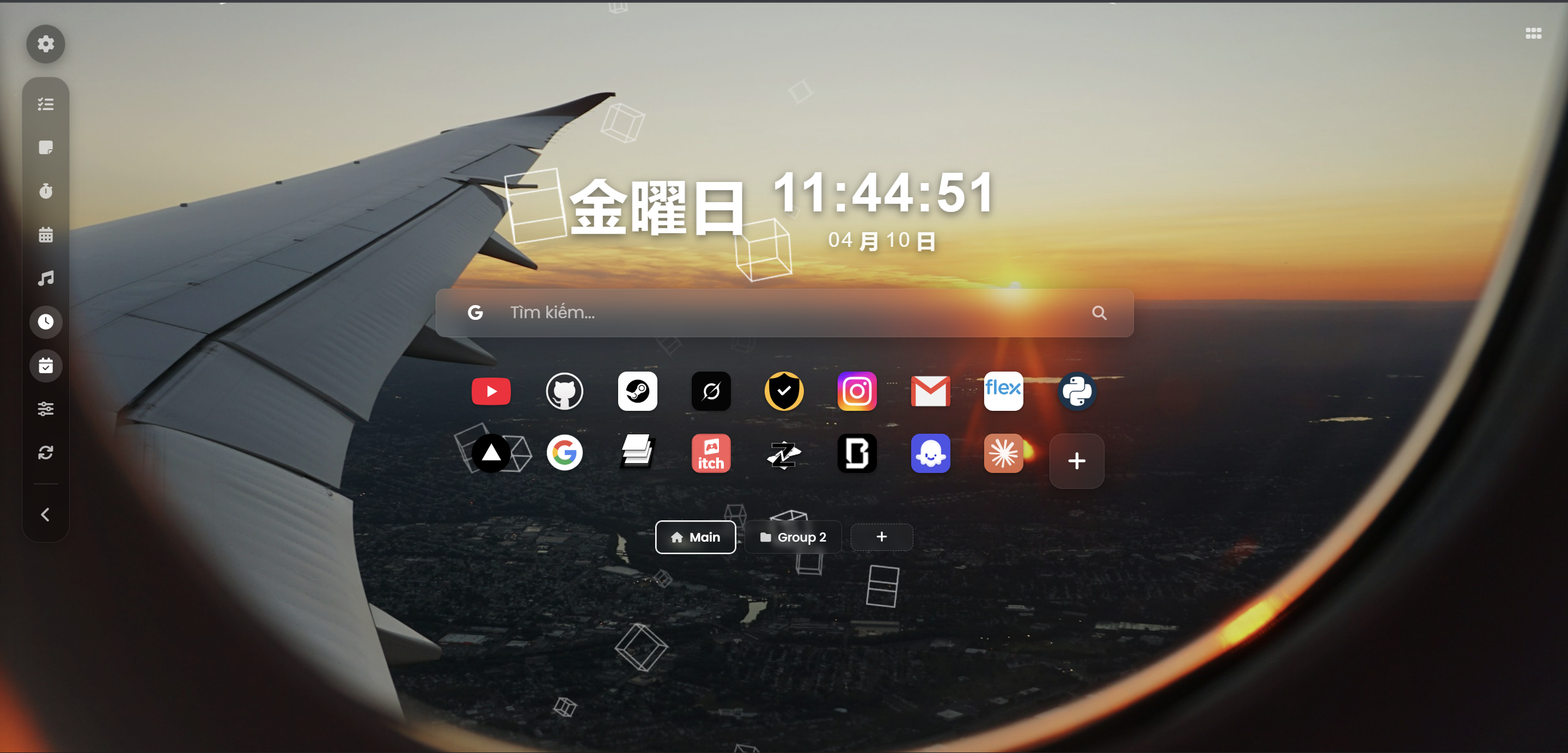
Clean New Tab Welcome Screen
💡 Pick a clean minimalist aesthetic wallpaper
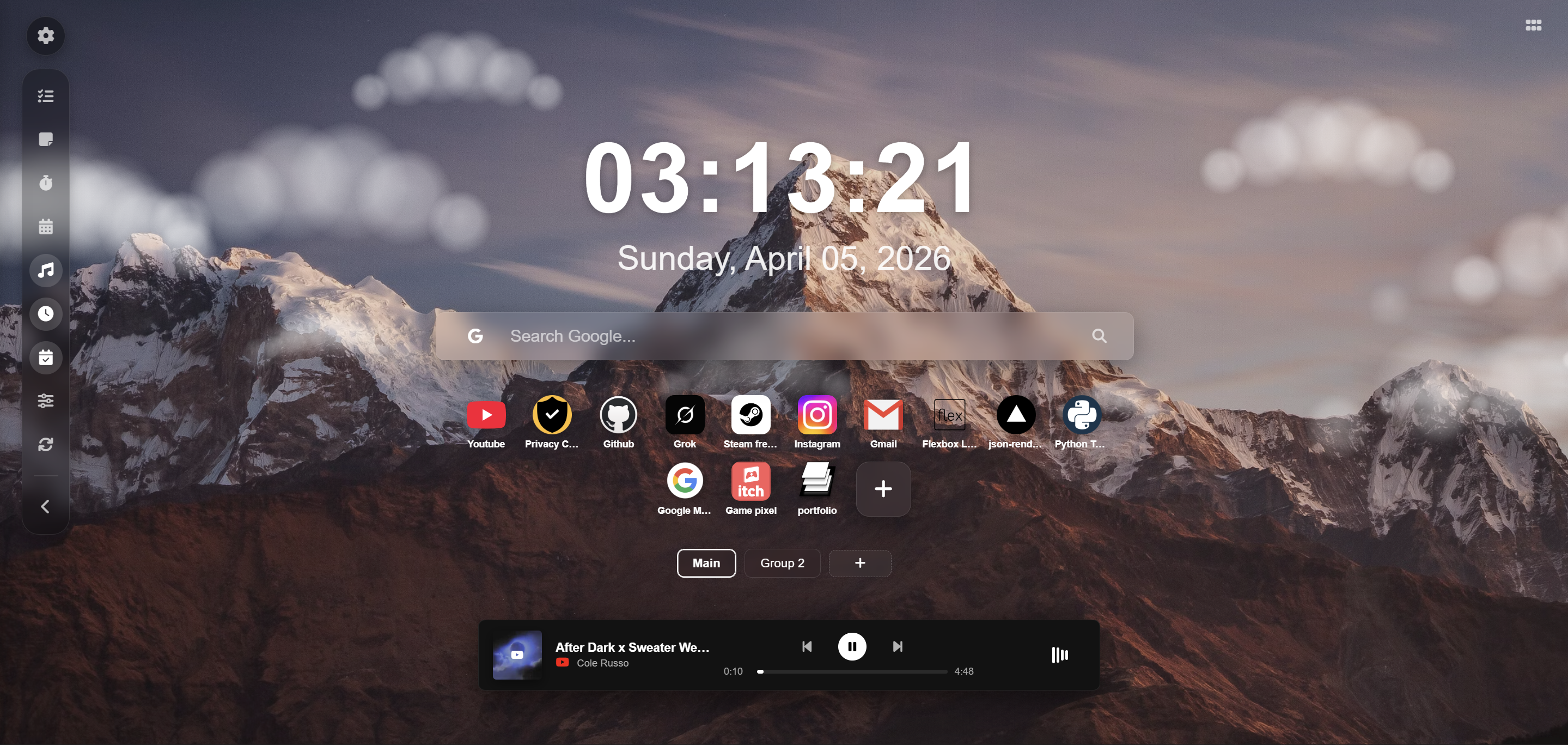
4 Key Interface Zones Overview
💡 Highlight the 4 functional areas with clean visual bounding boxes
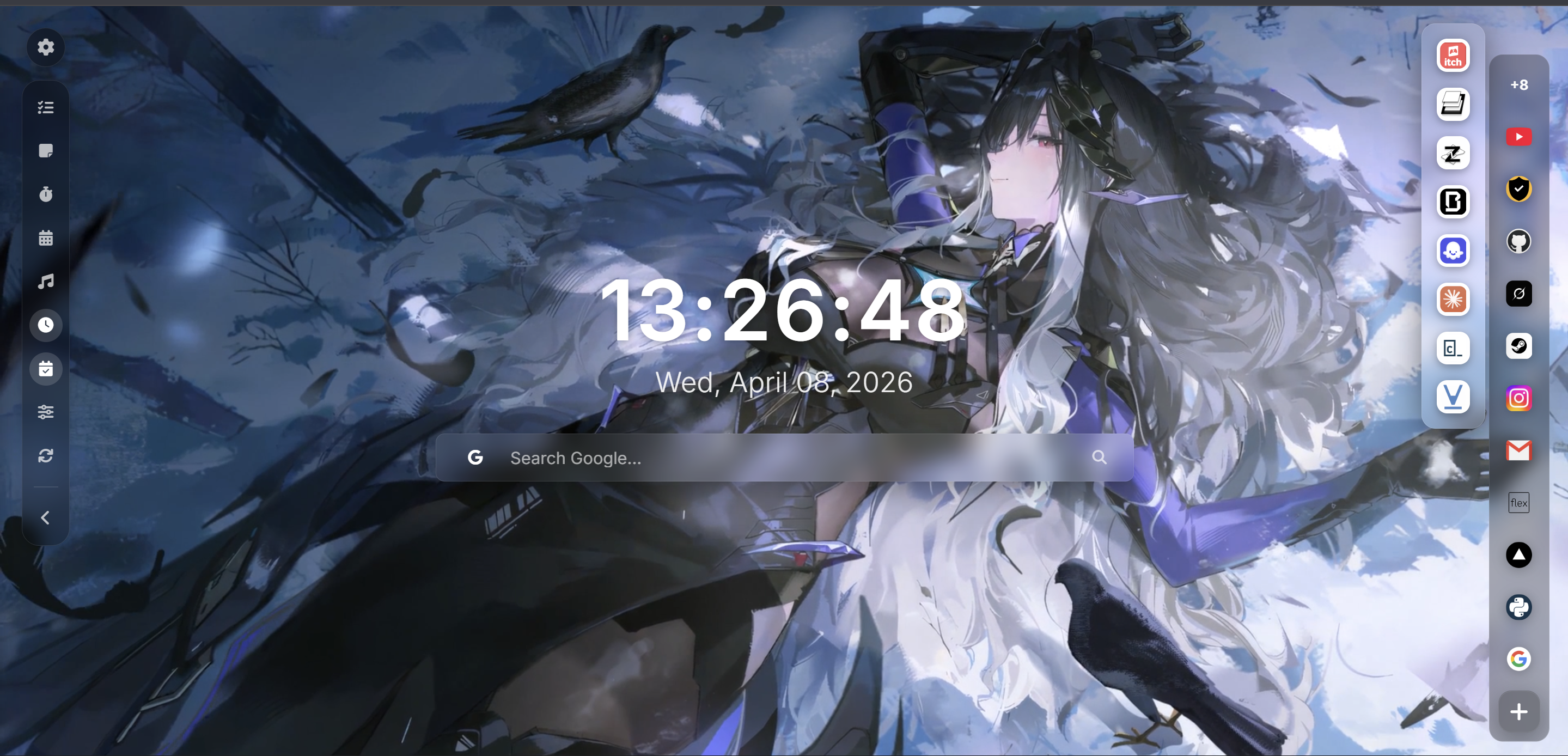
Omni Search Bar & Engine Options
💡 Show clearly Google Lens, Camera and Gemini AI badges
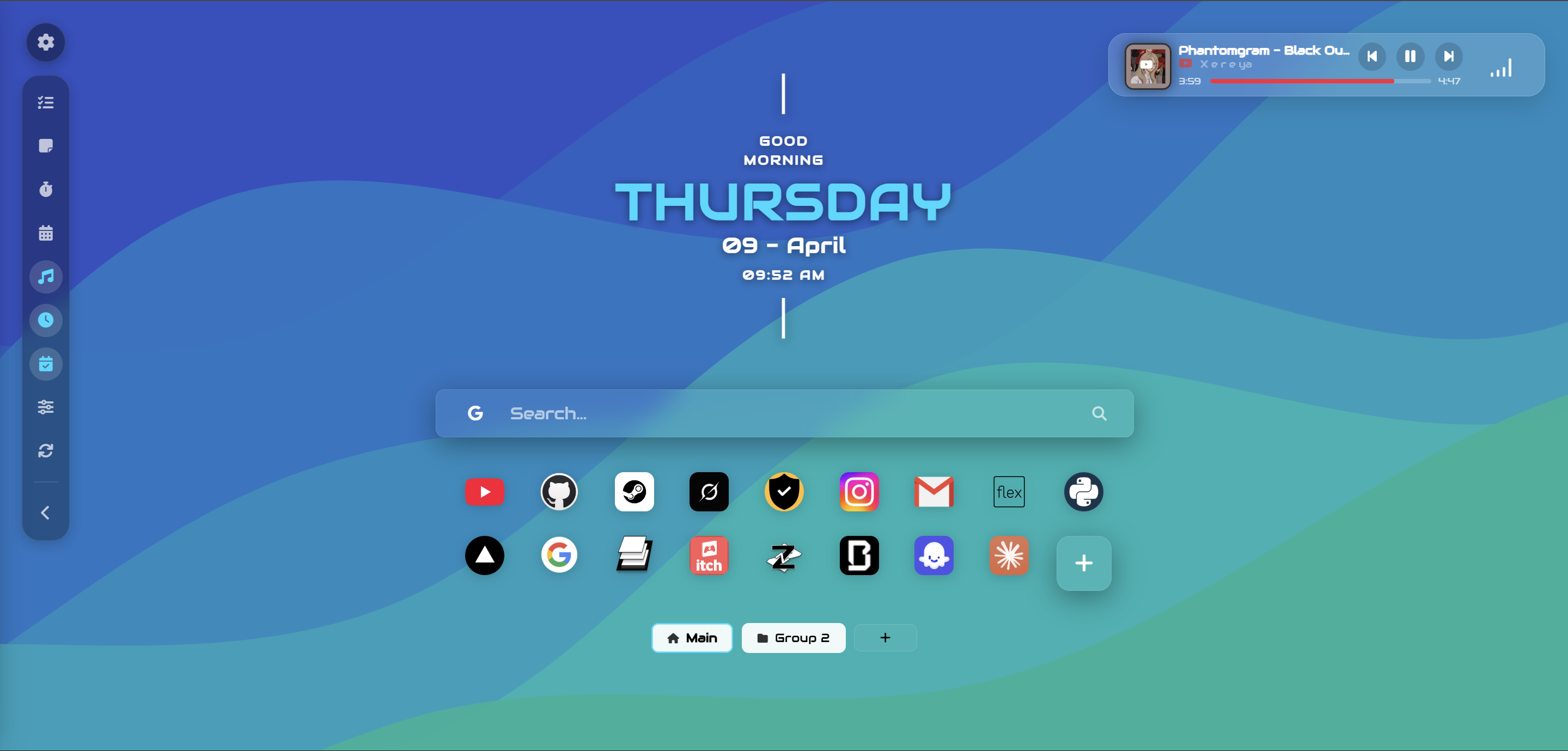
Clock, Date & Artistic Greeting
💡 Capture your best clock style (e.g. Flip Clock or 3D Voxel)
Browser Bookmark 1-Click Import
💡 Expand directory nodes to illustrate batch selection
Floating Multi-select Toolbar
💡 Select 2-3 bookmarks to trigger the top floating action bar
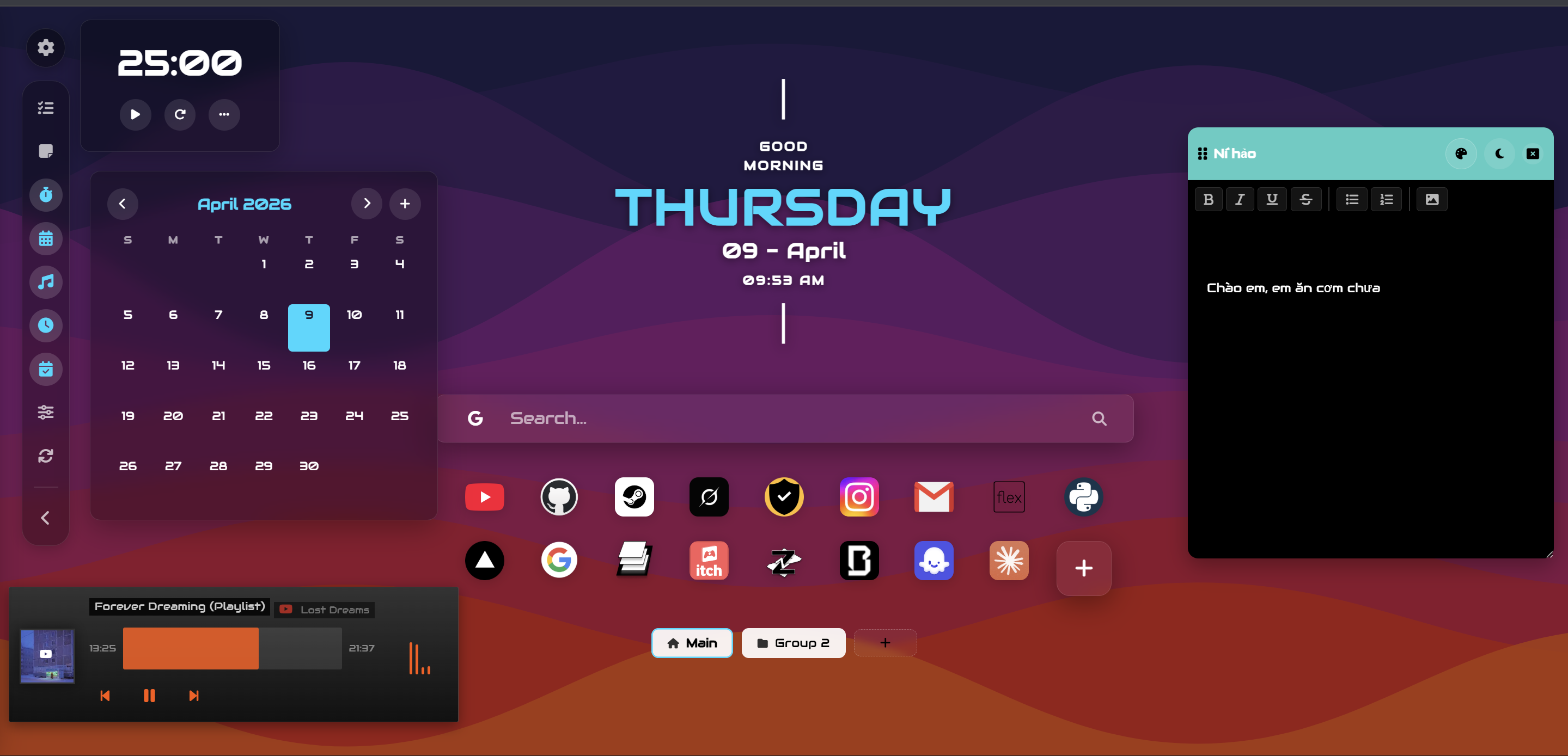
Productivity Widgets Showcase
💡 Arrange dragged widgets into an elegant balanced workspace
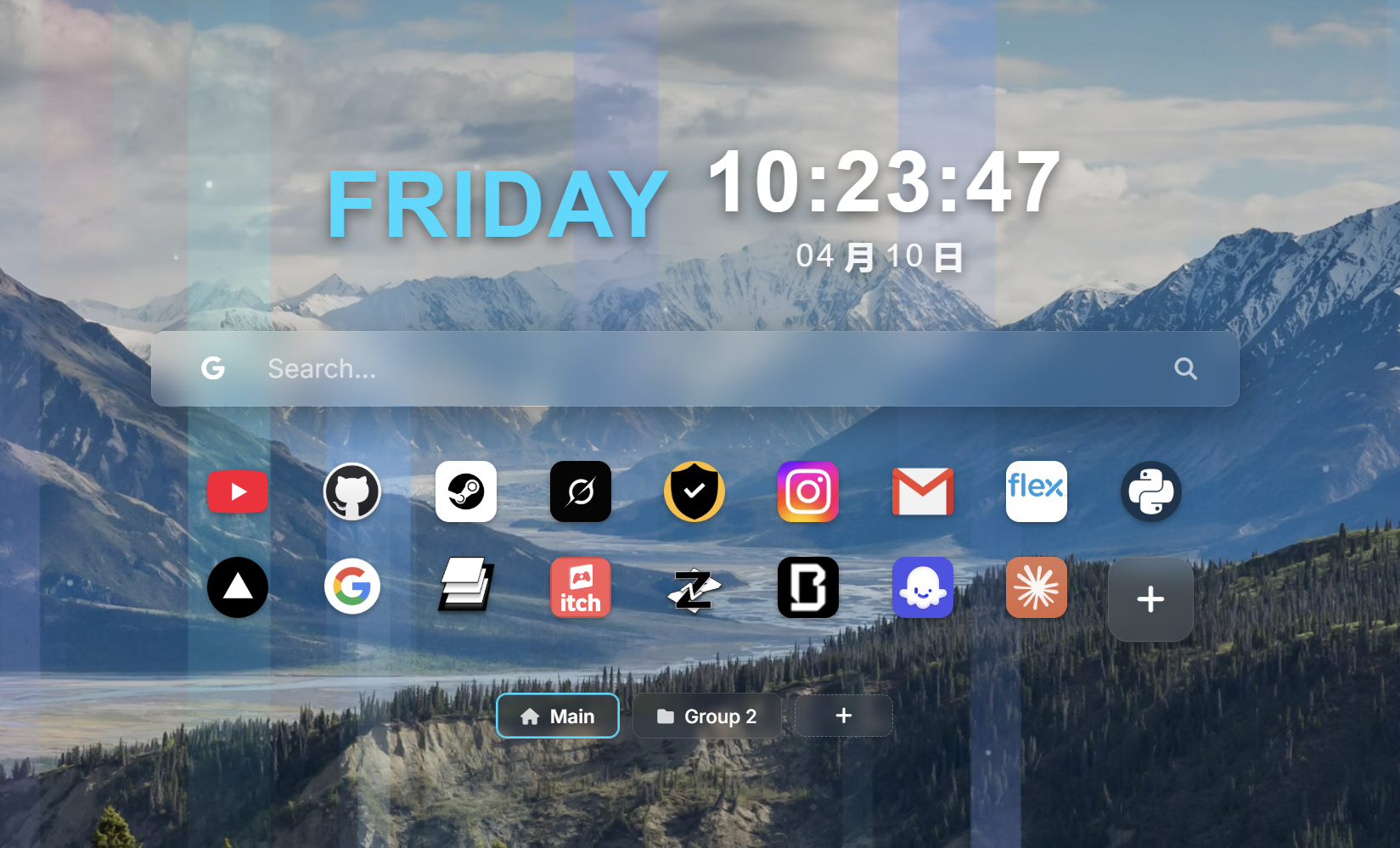
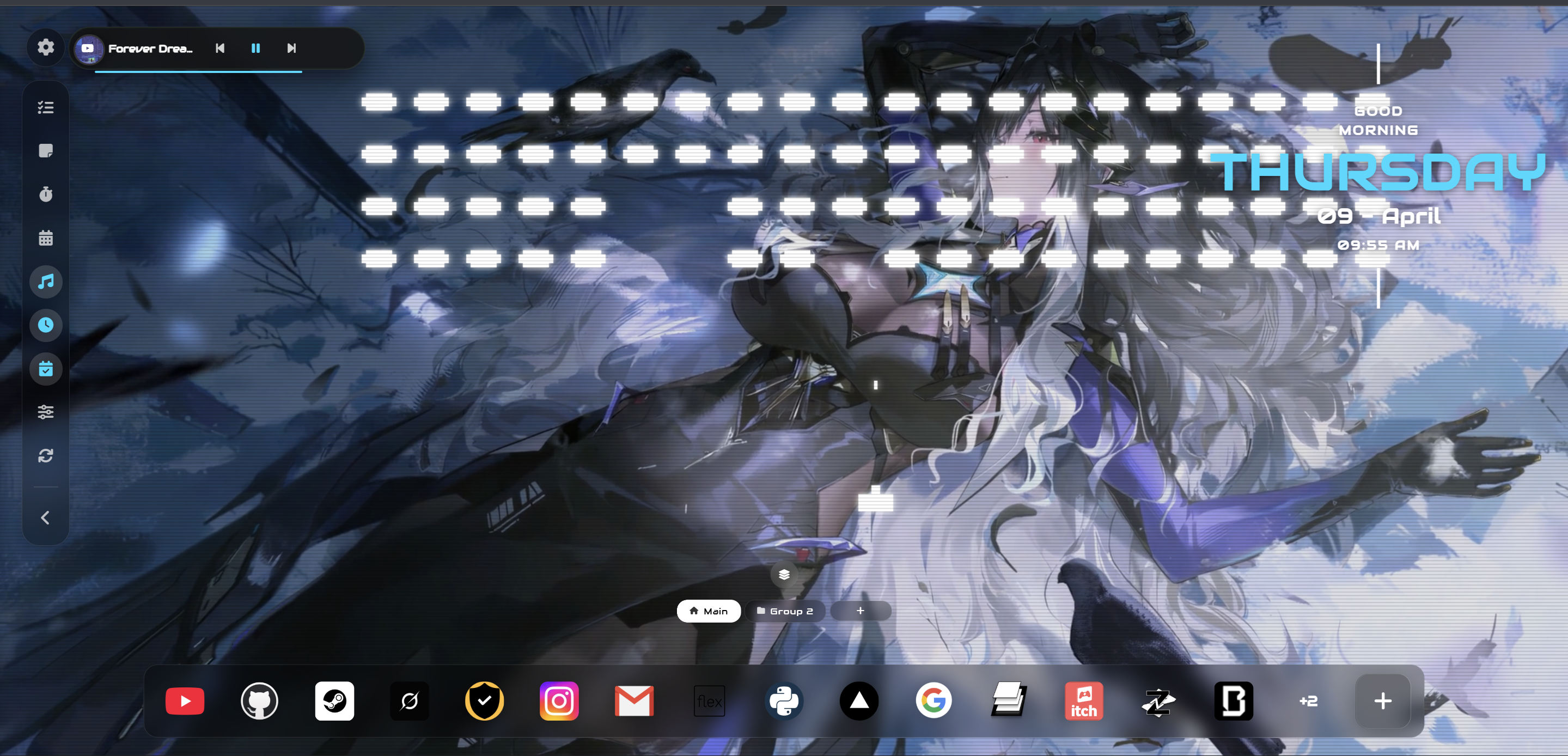
Custom Skins & Live FX Shaders
💡 Showcase Transparent / White Mode skin and interactive fluid shader
Power User Command Palette (Ctrl + K)
💡 Type 'todo' or 'theme' to show instant action suggestions
Introduction & Installation
1.1 Install from Store
- Open the official Chrome Web Store page: Zero Startpage Chrome Web Store ↗
- Click 'Add to Chrome' and confirm installation.
- When prompted on your first New Tab open, click 'Keep changes' to preserve your customized startpage.
Screenshot 01: Welcome screen on initial New Tab launch
Interface Overview
Zero Startpage is methodically divided into 4 key zones designed for maximum ergonomic focus:
| Zone | Position | Primary Function |
|---|---|---|
| Center | Center Screen | Displays Clock, Date, Search Bar and Bookmarks Grid |
| Quick Access Bar | Left / Right Dock | Dock bar with 1-click toggles for productivity widgets |
| Top Right Controls | Top-Right Corner | 9-dot launcher for Google Apps (Gmail, Drive, Docs...) |
| Settings Sidebar | Slide-over Drawer | Master control panel for wallpapers, fonts, and preferences |
Screenshot 02: 4 Key Functional Areas Blueprint
Omni Search Bar & AI Search
The search bar goes far beyond conventional queries, packing smart engines and AI capabilities:
Click the left logo icon to instantly toggle between Google, Bing, DuckDuckGo, Brave, YouTube, Yahoo, Ecosia...
Real-time trending search suggestions appear effortlessly as you type.
Click the Lens/Camera icon to upload an image or paste direct image URLs for visual queries.
Toggle the AI star icon to converse directly with Gemini AI right from the search bar.
Screenshot 03: Search bar dropdown with multi-engine selection and AI Lens
Customizing Clock, Date & Greetings
Open Settings (Gear icon on Quick Access bar) ➔ Select Clock & Date tab.
Digital, Minimal, Flip Clock, Retro, Neon Glow, 3D Floating Voxel, Split-Pill...
Dual display for standard Gregorian calendar and traditional Lunar calendar.
Dynamic morning/evening greetings or personalized motivational quote title.
Screenshot 04: Clock styles and personalized greeting display
Bookmark Management & Smart Grouping
5.1 1-Click Browser Import
Never rebuild from scratch. Seamlessly pull in your existing browser bookmarks:
- Click the '+' Add Bookmark button on your startpage.
- Select 'Import from Browser' modal button.
- Browse the hierarchical folder tree, select items, and confirm 'Import Selected'.
Screenshot 05: Native browser bookmark import dialog
5.2 Bookmark Groups & Floating Multi-select Toolbar
Click the Layer icon to spawn custom tab groups (Work, Study, Leisure, Dev). Right-click any bookmark and choose 'Select' to reveal the floating multi-select toolbar:
Screenshot 06: Floating multi-select toolbar for batch bookmark manipulation
Productivity Widgets Ecosystem
Click any icon on the Quick Access Dock to summon utility windows. Every widget supports buttery-smooth Drag & Drop with saved coordinate persistence:
Task creation, priority levels, audio feedback on completion.
Idea drafts, fluid resizing, instantaneous auto-save.
25min work / 5min rest cycles for focused deep work.
Daily habit tracker with streak counter and segmented progress.
Auto location detection, temperature, and multi-day forecast.
Subscribe to favorite newsfeeds, compact instant reader.
Controls YouTube, Spotify, Apple Music tabs with audio visualizer.
Procedural rain, ocean waves, birds, and cafe white noise.
Chat, summarize content, and query answers directly on New Tab.
Screenshot 07: Productivity multi-widget layout in action
Visual Customization, Skins & Live FX
7.1 Quick Access Skins
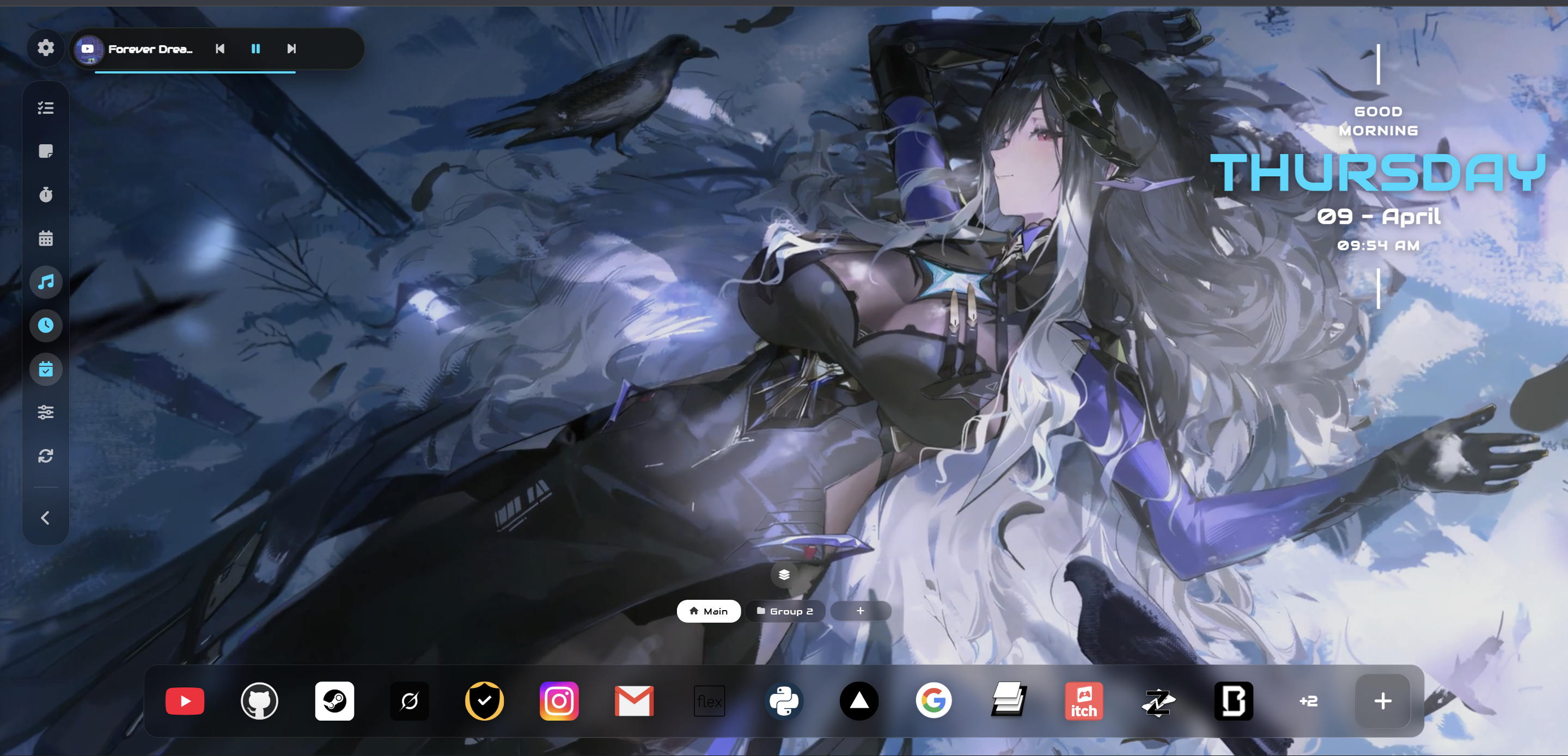
Right-click Quick Access bar or click Layout Controls slider icon:
- Default Glass: Modern blurred glassmorphism.
- Light Mode: Clean, bright minimal look.
- M3 Accent: Harmonized to Theme accent colors.
- Transparent (Mới): 100% transparent floating icons.
- White Access Mode: Tailored for monochrome fans.
7.2 Wallpapers & Canvas Shaders
- Unsplash 4K: Search and apply 4K wallpapers instantly.
- Video Wallpaper: Load local or remote lofi MP4/WebM loops.
- Splash Cursor: Glowing fluid particles following cursor.
- Liquid Ether / Aurora: Mesmerizing fluid waves and calming aurora.
- Pixel Snow HQ: Nostalgic retro snowfall physics.
Screenshot 08: Visual layout controller and Live FX shader engine
Power User Features
100% keyboard navigation: Trigger fast jumps to any settings pane or toggle widgets on/off in milliseconds.
Instant access to your favourite Google services: Drive, Gmail, Docs, Meet, and YouTube right from the upper right corner.
Screenshot 09: Ctrl + K Command Palette modal in action
Data Backup & Cross-Device Sync
All your configurations stay locally on your device. To sync across machines or back up:
Head to Settings ➔ System tab ➔ Click Export to download a full JSON snapshot of your startpage.
Upload your JSON file on any computer to restore your exact custom workspace in a heartbeat.
Frequently Asked Questions (FAQ)
1. Does Zero Startpage slow down or lag my browser?
Absolutely not. Zero Startpage is engineered with a Zero-Bloat philosophy, utilizing GPU hardware acceleration and lazy rendering. When switching tabs, all animation loops and WebGL shaders are paused automatically to consume 0% idle CPU and RAM.
2. Are my bookmarks and personal notes private and secure?
100% safe. We strictly adhere to Local-First & Zero Tracking principles. All bookmarks, notes, habits, and preferences stay on your local device (Chrome Local Storage / IndexedDB). No third-party servers ever track your browsing history or collect telemetry.
3. How do I reset to default layout if I misplace or overlap widgets?
Simply open Settings (Gear icon on Quick Access dock) ➔ Navigate to the Layout tab (or right-click to open Layout Controls) ➔ Click 'Reset Layout'. All widgets, search bars, and the central clock will instantly return to their pristine default positions.
Ready to Elevate Your New Tab?
Install for free and turn every new tab into an aesthetic, focused workspace.